Three levers
A photo’s file size depends on how many pixels it has, how hard it is compressed, and which format holds it. You can pull any of these, and they stack.
- Dimensions. Fewer pixels means less data. A photo taken at full resolution is often far larger than a screen or a form needs.
- Quality. Lossy formats trade detail for size. Lower quality gives a smaller file, with visible damage at some point that depends on the image.
- Format. Some formats compress better than others at similar visual quality.
Start with dimensions, because it hurts least.
1. Resize first
The HEIC resize tool takes width and height with a proportional lock, in pixels or percent, with presets and a before/after view. It does not enlarge by default, which protects you from creating a bigger file with no extra detail. It can output HEIC where the browser can encode it, or JPG, PNG or WebP. For files that are already JPG, PNG, WebP or AVIF, use the image resizer.
You rarely need more than a few thousand pixels on the long side for screens. We do not give a universal number, because it depends on where the photo will be shown. Check the destination’s stated maximum.
2. Then adjust quality
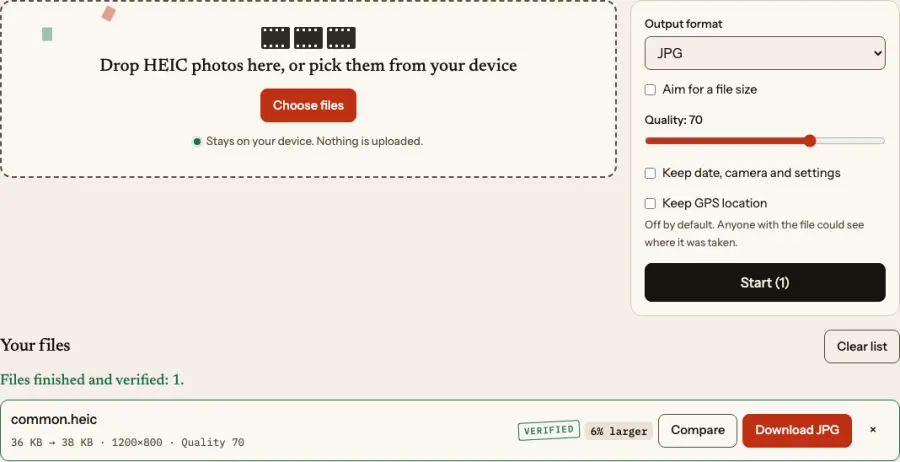
For a JPG, the quality slider (1 to 100, default 90 in FromHEIC) is the main control. Small drops from a high setting often save a lot with little visible change, but there is no universal setting, and no honest percentage to promise. Look at the output. The converter’s size comparison shows the result, and the compare tool lets you check a HEIC against a JPG.
MDN’s guide to image types is a good reminder that lossy compression suits photographs but can blur text, diagrams and sharp edges. For screenshots and line art, a lossless format like PNG is better, and shrinking dimensions is the safer lever.
3. Hitting an exact limit
If a form says “under 2 MB”, guessing is tedious. HEIC to target size accepts a target in KB or MB, runs an iterative quality search (up to 10 attempts), can apply maximum dimensions, and shows the quality and size reached. When the target cannot be met even at minimum quality, it says so, and the answer is to reduce dimensions. Output is JPG, WebP or AVIF.
4. Format choices
- HEIC is already efficient. Apple says HEIF and HEVC offer better compression than JPEG and H.264. If you are staying in the Apple world, there may be nothing to gain.
- JPG is the safe, accepted-everywhere target.
- WebP and AVIF can be smaller at similar visual quality. MDN reports lossy WebP averaging 25-35% smaller than JPEG and says AVIF is generally better again; those are averages from third-party comparisons, not guarantees. AVIF is defined by the AV1 Image File Format specification, and very old software cannot read it. Use HEIC to WebP or HEIC to AVIF for web use, and read HEIC vs WebP and AVIF first.
- PNG and TIFF are larger, by design. PNG output from a HEIC is often several times the HEIC size.
5. Re-compressing a HEIC
The HEIC compressor re-encodes with a quality slider or a target size, with a before/after slider. It can output HEIC only where your browser has an HEVC encoder; otherwise that option is disabled and explained, and JPG, WebP or AVIF are offered, clearly labelled. Important honesty point: the result can be larger than an efficient HEIC, and the tool says when no saving was achieved. Re-encoding an already compressed file also adds a lossy generation.
6. Remove what is not a picture
Metadata and thumbnails take a little space. Removing them is mostly a privacy step, and it does not change the compressed picture data. The saving is usually small; do not rely on it to hit a limit. See metadata and GPS.
A repeatable method
- Keep the original. Work on copies.
- Resize to what the destination needs.
- Convert to the required format at the default quality.
- If still too large, lower quality in small steps or use target-size.
- Look at the result at 100% before sending.
- For many files, use the batch converter with the same settings, then spot-check.
What not to do
Do not convert back and forth between lossy formats. Each pass adds damage. Do not rename files to change the format. And do not expect shrinking to be free: smaller files carry less information, and that cannot be recovered later. For the decoder behind these tools, see libheif. For a form-specific checklist, see preparing photos for forms.